


Artwork Guidelines
ARTWORK GUIDELINES
Design Templates
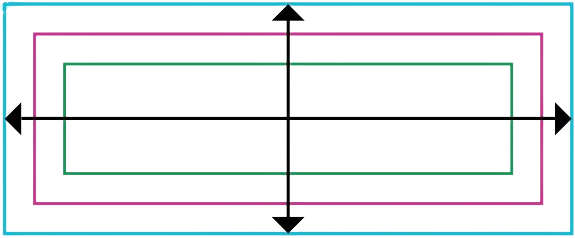
Design templates are available in .AI (Adobe Illustrator) and .PDF format for all stock shapes and sizes. The templates include the Trim Size, Safe Area,
and
Bleed Edge.
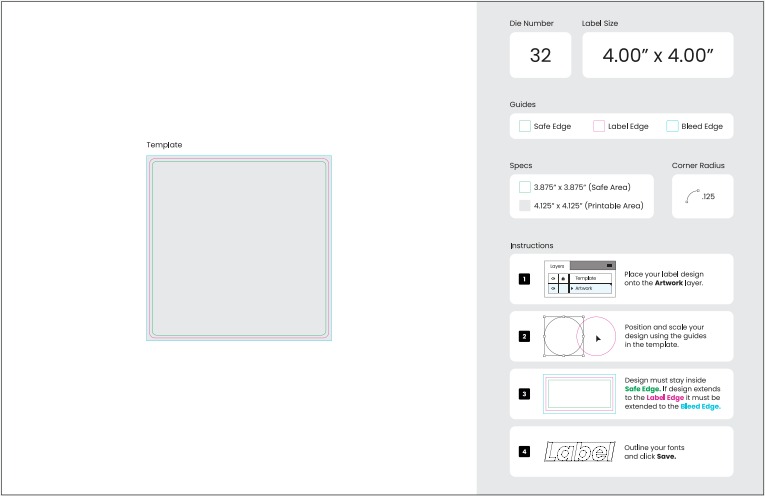
Understanding Trim Size, Safe Area and Bleed Edge
- Trim Size: Represents the finished size of your product.
- Safe Area: Design elements such as logos and text that are intended to be inside of the edge of the label must stay inside the Safe Area. If they extend past the Safe Area they risk being off during the production process. The Safe Area is 1/16th of an inch inside the cut line.
- Bleed Edge: Design elements that are intended to go to the edge of the label such as background images and colors must extend beyond the Trim Size all the way to the Bleed Edge.
Example: A 1.00” x 2.00” label would have the following artwork specifications:
- Trim Size: 1.00" × 2.00"
- Safe Area: 0.875" × 1.875"
- Bleed Edge: 1.125" × 2.125"
- Final Artwork Size including bleeds: 1.125” x 2.125”

Good vs Bad Example
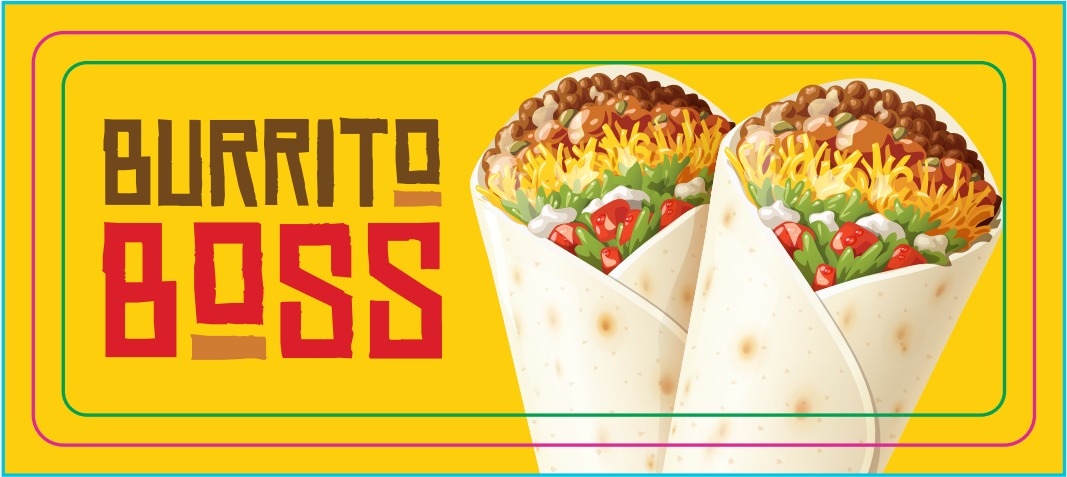
✅ Logo + artwork inside the Safe Area, background extends to Bleed Edge.
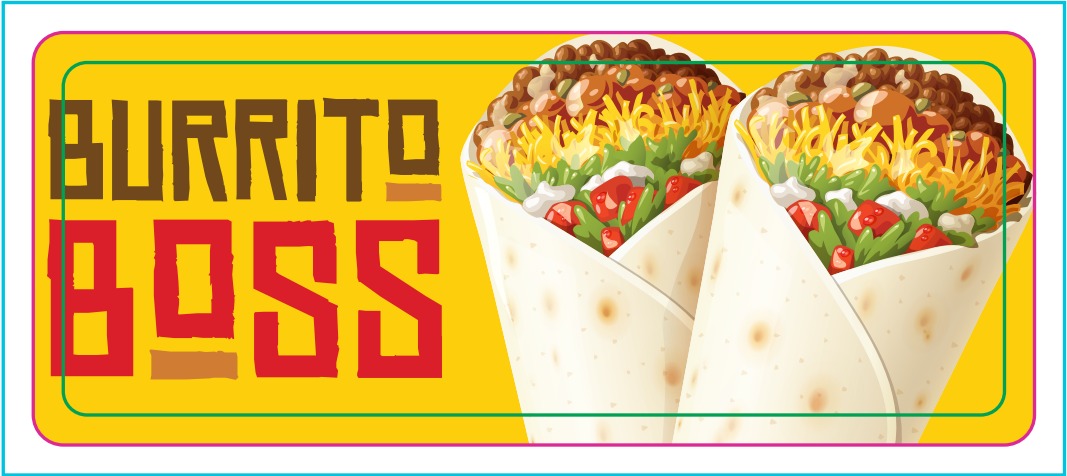
❌ Logo + artwork extends outside Safe Area, background doesn’t reach Bleed Edge.
Raster vs Vector
- Raster Artwork: Raster images, also called bitmap images, are generated with pixels and are used in digital photography and web graphics. They are typically created and edited in applications like Adobe Photoshop.
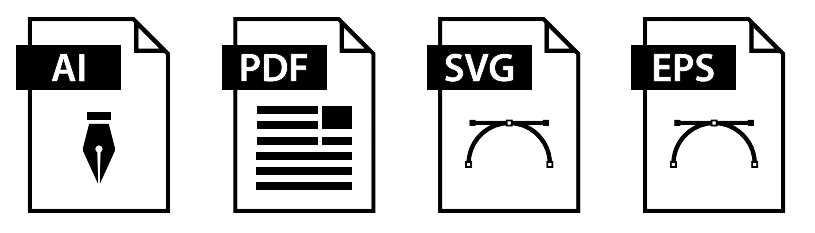
If you are using any raster images in your artwork they must be at least 300 dpi. In general, raster images that are not high enough in resolution are not scalable. Typically, images from the internet are only 72 dpi and will appear
rough and pixelated when printed. If your artwork is a raster image or contains raster images be sure to save it in one of the following formats:

- Vector Artwork: Vector artwork is made up of paths and points that use mathematical formulas. These files are infinitely scalable and will retain the quality of the image regardless of its size. Vector files are created
in applications such as Adobe Illustrator. Vector artwork can be saved in the following formats:
File Checklist

Convert all fonts to outlines or include the font files.
Embed linked raster files or provide them separately.
Submit artwork at actual size.

Provide native files when possible (e.g. Illustrator).

Clearly indicate the cut line.

Embed your color profile (defaults used if missing).
Proofs
We provide free digital proofs with every order. Production does not begin until proof is approved.
Art Services
Minor file fixes are free. If significant rework is needed, we will notify you of additional charges before creating your proof.
